
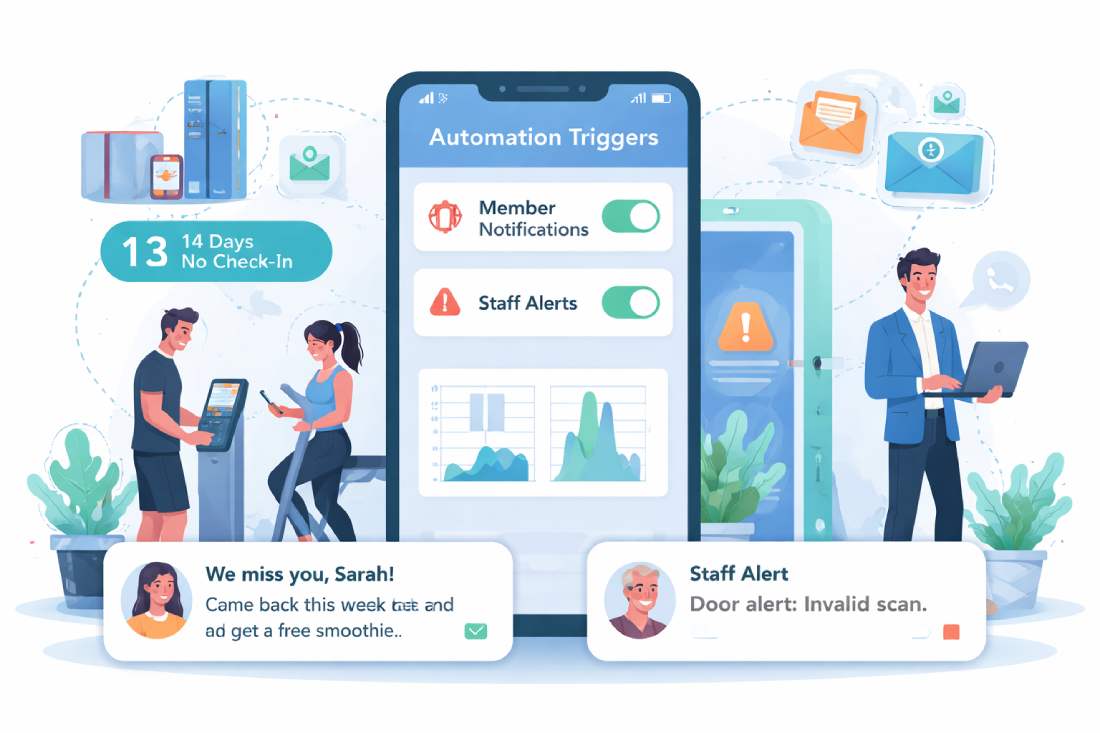

Automate messages to members and alerts to your staff.
Automation Triggers let you automatically send emails and text messages based on what happens inside your gym. They can be used in two equally important ways.
One, to send messages directly to members. Two, to notify you or your staff when something needs attention.
You control who gets notified and when, using simple rules.
What Are Automation Triggers?
Automation Triggers watch member behavior and system events. When conditions are met, they send a message automatically.
That message can go to the member, you, your staff, or any custom phone number or email address. This makes triggers useful for both customer communication and internal diagnostics.
Two Common Use Cases
Messaging Members Automatically
Triggers can reach out directly to members when something important happens.
- A member has not checked in for 14 days
- A member becomes at risk
- A member has an invalid door scan
- A member returns after being inactive
You can use these messages to re-engage, clarify issues, or prevent cancellations.
For example, if a member has an invalid door scan, send them an email explaining that their membership may be expired and how to fix it.
Notifying You or Your Staff
Triggers are also powerful monitoring and alerting tools. Instead of sending messages to the member, you can route them to yourself or your team.
- Alert staff when someone has repeated invalid door scans
- Notify an admin when access is denied at a specific door
- Log engagement drops without messaging the member yet
This is especially useful for diagnostics and operational awareness.
For example, if a member has an invalid door scan, send an email to admin with the member name, email, door name, and status so staff can investigate.
How Automation Triggers Work
There are two trigger types, each suited for different situations.
Scheduled Triggers
Run on a schedule and scan your member list. They check daily or hourly and find members matching your rules.
- Find members who have not checked in for 14 days and email them.
- Or find members who are at risk and notify staff only.
Event Based Triggers
Fire instantly when something happens. No schedule is required.
- When a door scan is denied, immediately notify staff.
- Or send a message to the member explaining what happened.
Setting Up a Trigger
Basic Settings
Name
Use clear names like Invalid Door Scan Member Notice or Invalid Door Scan Staff Alert.
Active
Enable or pause the trigger without deleting it.
Trigger Type
Scheduled for rule based checks. On Invalid Door Scan for real time events.
Schedule
Only applies to scheduled triggers. Daily or hourly.
Cooldown
Controls how often the same person can receive messages. This applies whether the recipient is a member or staff.
Dedupe Scope
Prevents repeated messages. Day, week, or forever.
Building Rules for Scheduled Triggers
Scheduled triggers use rules to decide who matches. You can require all conditions or any condition.
Available Conditions
- Engagement tier now
- Engagement tier 30 days ago
- Last check in
- At risk since
- Invalid door scan timing
Actions — Who Gets the Message
After matching members or events, choose what action to take.
Text Messages
Send to the matched member or a custom phone number such as your own. This is useful for quick alerts or direct member outreach.
Emails
Send to the matched member or a custom email address such as admin or staff. This is ideal for diagnostics, logging, and detailed explanations.
Using Variables
Variables personalize messages and add context. Available variables include:
|| name }}|| email }}|| door_name }}|| status }}
Real World Examples
Member Notification for Expired Access
Type: Event based
Trigger: Invalid door scan
Action: Email to matched member
Hi || name }}, your access attempt at || door_name }} was denied. This usually means your membership needs attention. Please contact us to get access restored.
Staff Diagnostic Alert
Type: Event based
Trigger: Invalid door scan
Action: Email to custom address
|| name }} || email }} had an invalid door scan at || door_name }}. Status || status }}.
Re-engage Inactive Members
Type: Scheduled daily
Rule: Last check in before 14 days ago
Action: Email to matched member
Quiet Monitoring Without Messaging Members
Type: Scheduled daily
Rule: Engagement tier now is At risk
Action: Email to staff only
This lets staff review trends before reaching out.
Best Practices
- Create separate triggers for members and staff
- Use staff alerts before sending automated member messages
- Start with longer cooldowns
- Use email for diagnostics and SMS for urgency
- Name triggers clearly so staff knows their purpose
Most gyms find that a mix of member messages and internal alerts gives the best results.
Final Notes
Automation Triggers are not just marketing tools. They are also operational tools.
Use them to communicate clearly with members, catch issues early, monitor access problems, and reduce manual checking.
Start with one or two triggers, then expand as you see how your gym responds. This feature is currently in beta and will continue to evolve based on real gym feedback.
Want to See Automation Triggers in Action
View a live demo of how automation triggers, member engagement tracking, access control, and staff alerts work together inside ManageMemberships.